Many people prefer cooking meals at home because it’s healthier, cheaper, and easier to control ingredients. But when you cook something yourself, figuring out the exact calories and nutrients can be confusing. You would normally have to calculate every ingredient manually, which takes a lot of time and effort.
That’s where the MyFitnessPal Recipe Calculator becomes very helpful. It allows you to add all the ingredients of your recipe and instantly see the total calories, macros, and nutrition details. In this article, you’ll learn how the tool works, why it’s useful, and how to use it to track your homemade meals easily.
If you regularly track your meals, you might also want to learn how to reset MyFitnessPal counter to fix calorie tracking issues.
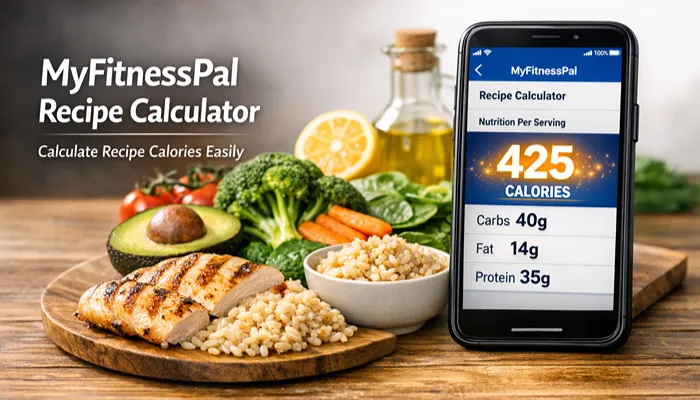
What Is the MyFitnessPal Recipe Calculator?
The MyFitnessPal Recipe Calculator is a built-in feature that helps you understand the nutritional value of meals you cook at home. Instead of logging each ingredient separately every time you eat the dish, this tool lets you enter all the ingredients of a recipe once and automatically calculates the nutrition for the entire meal.
After entering the ingredients and the number of servings, the calculator breaks the recipe into portions and shows the nutrition per serving. This makes it much easier to track homemade meals accurately.
You can find this feature inside the “Recipes, Meals & Foods” section of the MyFitnessPal app. From there, you can create a new recipe, add ingredients, and save it for future use.
Once the recipe is created, the calculator estimates important nutrition details such as:
- Calories
- Protein
- Carbohydrates
- Fat
- Fiber
- Sodium
This makes the tool especially helpful for people who want to track their diet, manage weight, or understand the nutrition of the meals they cook regularly.
Why Use the MyFitnessPal Recipe Calculator?
The MyFitnessPal Recipe Calculator is a helpful tool for anyone who cooks at home and wants to understand exactly what they are eating. When you prepare meals yourself, it can be hard to estimate calories and nutrients. This calculator solves that problem by analyzing every ingredient and showing the nutritional breakdown of the entire recipe.
Here are some key benefits of using the MyFitnessPal Recipe Calculator:
- Track homemade meals accurately so your calorie count stays correct
- Calculate calories per serving automatically based on your recipe
- Plan meals for weight loss or muscle gain with better nutrition control
- Monitor macronutrients easily, including protein, carbs, and fat
- Save recipes for future use, so you don’t need to enter ingredients again
Many people who use MyFitnessPal recipe tracking rely on this tool to make healthier choices while still enjoying homemade food. It turns complex nutrition tracking into a simple process.
If you share meals with family members, you may also benefit from the MyFitnessPal family plan, which allows multiple users to manage their nutrition together.
How to Use the MyFitnessPal Recipe Calculator (Step-by-Step)
If you want to know the exact calories and nutrients in your homemade meals, the MyFitnessPal Recipe Calculator makes the process very simple. You just need to enter your ingredients, and the app will calculate the nutrition automatically. Follow the steps below to use it correctly.
Step 1: Open the MyFitnessPal App
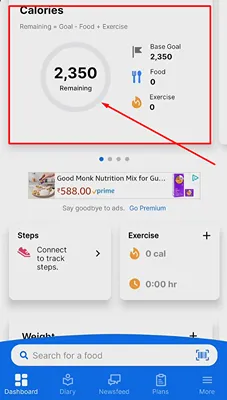
Start by opening the MyFitnessPal app on your phone. After logging in, go to the main dashboard where you normally track your meals.
Look for the “More” option in the bottom menu. When you tap it, you will see several features related to food tracking, goals, and settings. From here, you can access the recipe tools that allow you to create and calculate meals.
Step 2: Go to “Recipes, Meals & Foods”
Inside the More menu, find and tap “Recipes, Meals & Foods.”
This section is where MyFitnessPal lets you:
- Save custom meals
- Create recipes
- Add foods that are not already in the database
It’s basically the control center for managing your personal food entries.
Step 3: Select “Create a Recipe”
Next, choose “Create a Recipe.”
You will usually see two options:
- Enter Ingredients Manually
- Import from a Website
If you are cooking something at home, the manual option works best because you can add each ingredient yourself.
Step 4: Add Ingredients
Now it’s time to enter the ingredients for your recipe.
Searching ingredients
Use the search bar to find each ingredient in the MyFitnessPal food database. For example, you can search for items like:
- Chicken breast
- Olive oil
- Rice
- Vegetables
Adding quantities
Once you select an ingredient, add the exact quantity you used. For example:
- 200 grams chicken
- 1 tablespoon olive oil
- 1 cup rice
The more accurate your quantities are, the more accurate the nutrition calculation will be.
Step 5: Set Number of Servings
After adding all ingredients, enter the number of servings your recipe makes.
This step is very important because the app divides the total nutrition by the number of servings. For example, if your recipe serves 4 people, MyFitnessPal will calculate nutrition per serving instead of the whole dish.
Correct serving sizes help you track calories more accurately.
Step 6: Save the Recipe
Once everything looks correct, tap Save.
Your recipe will now be stored in your MyFitnessPal account. This means you can quickly log it again in the future without re-entering all the ingredients.
Step 7: View Nutrition Information
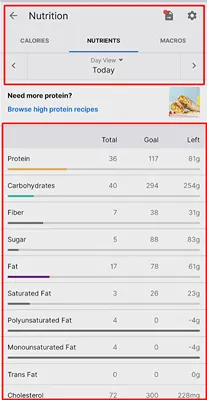
After saving, the MyFitnessPal Recipe Calculator will automatically show the nutrition breakdown.
You can see important details like:
- Calories
- Protein
- Carbohydrates
- Fat
- Fiber and other nutrients
This makes it much easier to track homemade meals and stay on top of your daily nutrition goals.
If you’re new to the app, you may first want to understand how to track calories in MyFitnessPal before creating your own recipes.
Example: Calculating Nutrition for a Homemade Recipe
Let’s look at a simple example to understand how the MyFitnessPal Recipe Calculator works in real life.
Imagine you are cooking a basic meal at home with three ingredients: chicken breast, olive oil, and rice. You add these ingredients to the recipe calculator with their quantities.
| Ingredient | Quantity | Calories |
|---|---|---|
| Chicken breast | 200g | 330 |
| Olive oil | 1 tbsp | 120 |
| Rice | 1 cup | 200 |
Total Calories
To calculate the total calories for the entire recipe, simply add the calories from each ingredient.
330 (chicken) + 120 (olive oil) + 200 (rice) = 650 total calories
So, the full recipe contains 650 calories.
Calories Per Serving
Now let’s say this recipe makes 2 servings. The MyFitnessPal Recipe Calculator will automatically divide the total calories by the number of servings.
650 ÷ 2 = 325 calories per serving
That means each serving contains about 325 calories.
This simple process helps you clearly understand the nutrition of homemade meals and track your food more accurately inside MyFitnessPal.
How the Recipe Calculator Calculates Nutrition
The MyFitnessPal Recipe Calculator works by using the large food database inside the MyFitnessPal app. This database contains nutrition information for thousands of foods and ingredients.
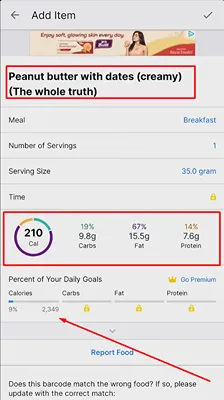
When you add ingredients to your recipe, the calculator automatically pulls the nutrition details for each item from the database. It then adds together the calories, protein, carbs, fat, and other nutrients from all the ingredients in the recipe.
After calculating the total nutrition for the entire recipe, the MyFitnessPal Recipe Calculator divides those values by the number of servings you choose.
This means each serving shows accurate nutrition information, making it easier to track calories and stay on top of your daily nutrition goals.
Common Problems When Using the Recipe Calculator
While the MyFitnessPal Recipe Calculator is very helpful, users sometimes face a few small issues while adding or calculating recipes. The good news is that most of these problems are easy to fix.
- Ingredient Not Found
Sometimes the exact ingredient you search for doesn’t appear in the database. Try using a more general term (for example, search “chicken breast” instead of a brand name). You can also add the ingredient manually. - Incorrect Serving Size
If the nutrition numbers look wrong, the serving size might not be set correctly. Always double-check how many servings the recipe makes before saving it. - Wrong Nutrition Values
Some ingredients in the database may have incorrect values. Pick items marked as verified or compare a few options before selecting one. - Duplicate Ingredients
Accidentally adding the same ingredient twice can increase calories incorrectly. Review the ingredient list and remove duplicates before calculating nutrition.
These quick checks help keep your recipe nutrition accurate and reliable.
Tips for Accurate Recipe Nutrition Tracking
Getting accurate nutrition results from the MyFitnessPal Recipe Calculator depends on how carefully you enter your ingredients. A few small habits can make a big difference.
Here are some helpful tips:
- Use a kitchen scale: Weigh ingredients instead of using rough measurements like cups or spoons whenever possible.
- Avoid guessing quantities: Even small estimation errors can change calorie counts significantly.
- Choose verified food entries: Look for items with the green check mark in MyFitnessPal to ensure reliable nutrition data.
- Double-check ingredients: Make sure you selected the correct ingredient version (for example, raw vs cooked).
- Set the correct serving size: Divide the recipe properly so each portion reflects accurate calories and nutrients.
Following these simple steps helps ensure your recipe nutrition information stays precise and reliable.
Premium users also get additional tools for nutrition tracking. Learn more about the MyFitnessPal premium features and how they improve food tracking accuracy.
MyFitnessPal Recipe Calculator vs Manual Calculation
When you want to calculate the calories and nutrients in a recipe, you have two options: using the MyFitnessPal Recipe Calculator or doing the math manually. The calculator saves time and reduces mistakes, while manual calculation takes more effort and accuracy depends on how carefully you measure everything. The table below shows the key differences.
| Feature | MyFitnessPal Recipe Calculator | Manual Calculation |
|---|---|---|
| Time required | Very fast – enter ingredients and it calculates automatically | Slow – you must calculate calories for each ingredient |
| Accuracy | High – uses a large nutrition database | Depends on your calculations |
| Convenience | Easy – everything is done in one tool | Difficult – requires multiple steps and tools |
For most people, the MyFitnessPal Recipe Calculator is the easiest and most reliable option.
Conclusion
The MyFitnessPal Recipe Calculator is a helpful tool that makes tracking homemade meals much easier. Instead of guessing calories or entering every ingredient separately, you can simply add your recipe and let the calculator estimate the nutrition for you.
This helps you understand what you’re actually eating and keeps your food log more accurate. If you often cook at home, using the MyFitnessPal Recipe Calculator can save time and improve your calorie tracking. Give it a try the next time you prepare a homemade meal and see how simple nutrition tracking can become.